
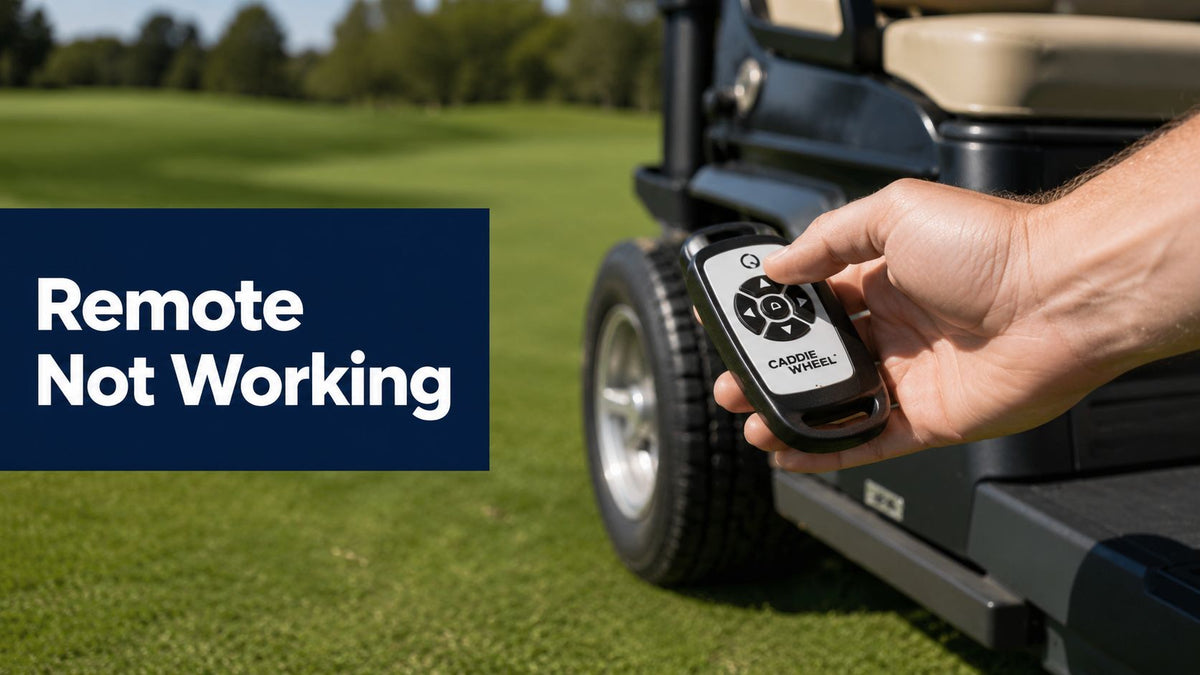
You're on the third fairway, the remote is clipped to your hip, and the Caddie Wheel has just stopped responding. You press forward once, then again. Nothing happens. Before you order a replacement or start opening the control housing, identify which part has failed: the remote, the receiver, or the wireless connection between them.
A remote control not working problem is easier to solve when you follow a decision tree instead of repeating a generic checklist. Start with power, then confirm whether the remote is transmitting, then test pairing and interference. That sequence tells you what to repair and what to leave alone.
Why Your Caddie Wheel Remote Stops Responding
A dead-looking Caddie Wheel remote usually points to one of three places: the remote, the cart's receiver, or the wireless path between them. Start by sorting the fault into that decision tree before buying parts. Low battery power, reversed battery orientation, and poor battery contact can prevent the handset from operating at all.
Consumer remote guidance from Sony recommends removing the batteries, holding the power button for three seconds, and reinstalling fresh batteries. That advice is written for television remotes, but the discharge-and-reinstall logic also applies to a Caddie Wheel handset because it clears leftover charge and restores a clean power cycle. Sony's remote troubleshooting guidance also discusses interference and obstructions affecting Bluetooth-based remotes.
If the handset has power but the cart ignores commands, inspect the receiving system next. The receiver may lack power, lose its pairing state, suffer wiring damage, or have an antenna fault. Moisture exposure, impact, or an electrical problem makes a receiver issue more likely than a simple battery failure.
Wireless conditions form the third branch. Infrared systems require a clear path, and walls, furniture, metal objects, or a blocked sensor can stop commands from reaching the target, as described in Sony's infrared remote guidance. RF and Bluetooth systems can also struggle near electronics or after pairing is lost.

Practical rule: Identify the fault family first. A replacement remote cannot restore receiver power, and pairing cannot fix a handset that is not transmitting.
Diagnose the Cause Before You Touch Anything
A Caddie Wheel remote can fail in three different places: the handset, the receiver, or the wireless path between them. Identify the fault branch before buying parts. Start with three questions: does the remote have power, is it paired, and can its signal reach the receiver?
Press a button and watch the indicator, if your model has one. No light points to depleted batteries, poor contacts, or an internal handset fault. A light confirms only that the remote has some power. It does not confirm that the cart receives or accepts the command.
Test again close to the receiver. If the cart responds nearby but fails from your normal walking position, check range, obstructions, battery strength, and interference. If it fails at close range as well, pairing or receiver operation moves to the front of the decision tree.
Check the surroundings before opening anything. A phone hotspot, Bluetooth speaker, charging equipment, metal structure, or thick bag between the remote and receiver can disrupt wireless communication. Infrared remotes need a clear path, while paired RF or Bluetooth remotes may need a new connection even when their indicator works.
Symptom vs. Likely Cause at a Glance
| Symptom | Most Likely Cause | First Check |
|---|---|---|
| No indicator response | Battery or battery contact fault | Install fresh batteries and inspect contacts |
| Indicator works, cart ignores every command | Pairing or receiver issue | Reset and re-pair the system |
| Cart responds only nearby | Range, obstruction, or interference | Test in an open area with electronics moved away |
| One control works while another doesn't | Stuck button or switch fault | Press each button individually and inspect movement |
| Intermittent movement | Unstable connection or receiver fault | Stop operation and verify the safety cutoff |
Use the fault pattern to choose the next check. Fresh batteries, correct polarity, and a clean battery compartment address common intermittent failures. A phone camera can also show whether an infrared remote is transmitting, as explained in This remote-care guide. If the remote transmits but the cart still ignores every command, stop treating the handset as the only suspect and inspect pairing, receiver power, and the safety cutoff.
Check the Battery and Contacts First
Start with power. It is the fastest way to separate a dead handset from a receiver or interference problem. Remove the cover and batteries, then check the polarity markings. Inspect each metal contact for dirt, corrosion, moisture, looseness, or a bent spring that no longer presses firmly against the cell.
Install fresh, matching batteries of the correct type. Do not mix old and new cells, and do not trust a recently installed set without testing it. An indicator light can still appear when the remote cannot send a usable command.
Follow the power check in order
- Remove the batteries: Check for white or green residue, moisture, dirt, and damaged contacts.
- Clean carefully: Wipe loose dirt with a dry cloth. If corrosion is present, clean it carefully and keep residue away from the electronics.
- Check polarity: Match the positive and negative ends with the molded diagram.
- Reset the handset: With the batteries removed, hold the power button for three seconds, then reinstall fresh batteries. This clears residual charge before the next test.
- Test transmission: Aim the remote at your smartphone camera and press a button.
For an infrared remote, a flash from the emitter on the phone screen confirms that the handset is sending a signal. No flash puts the fault on the battery supply, contacts, button switch, or internal circuitry. The phone-camera method is described in this remote-control diagnostic guide.

If the emitter flashes but the Caddie Wheel still ignores every command, the batteries are doing their job. Check the receiver, pairing, safety cutoff, line of sight, and interference instead of buying replacement parts.
Reset and Repair the Remote
A paired RF or Bluetooth remote needs more than a battery swap when its connection has dropped. Reset both sides cleanly, then re-establish the connection instead of pressing buttons repeatedly and hoping the receiver wakes up.
Start with the cart switched off. Remove the remote batteries and hold the remote's power button for about three seconds to discharge residual charge. Wait roughly one minute, then reinstall the batteries correctly. Sony's pairing and reset guidance describes this type of discharge-and-reinstall sequence for temporary non-response caused by contact problems or static.
Use a controlled pairing sequence
- Power down safely: Switch off the cart and keep the emergency-stop function available. Never bypass a safety cutoff.
- Discharge the remote: Remove the batteries, hold the power button for three seconds, and wait one minute.
- Start receiver pairing: Use the cart's pairing, sync, or learn control as described in the manual. Hold it only for the specified period, commonly a few seconds.
- Put the remote into learn mode: Press the required pairing control according to the model's instructions. If the remote has a stop button, use it first.
- Confirm the connection: Wait for the receiver indicator to show a completed connection before testing movement.
For model-specific setup, use the Caddie Wheel quad remote control guide rather than guessing which button starts pairing mode. A wrong sequence can leave the receiver waiting for a signal that never arrives.

After pairing, test stop, forward, reverse, and speed control separately. Keep the cart stationary or move it at the lowest safe speed during the first test. If pairing fails again, inspect the contacts, try a confirmed-good battery of the correct type, and stop if the cart moves intermittently.
Rule Out Interference and Range Problems
Test the surroundings before blaming the remote. A status light can show that the handset is sending a command, but the receiver may still be unable to interpret it at that location. This decision separates a remote fault from a receiver or signal problem.
Clear phones, smartwatches, Bluetooth speakers, golf GPS units, chargers, and other wireless electronics from the cart. Keep possible interference sources well away during testing. A safe separation of 10 meters is recommended for nearby wireless equipment that may disrupt Bluetooth operation.
Run the open-area test
Take the cart and remote into a clear area. Keep the handset at waist height and aim it toward the control housing. Remove thick bags, metal structures, or accessories positioned between the remote and receiver. Test at close range, then increase the distance gradually.
The result identifies the likely fault. If the cart responds nearby but fails at normal distance, suspect a weak transmitter, damaged casing, an obstruction, or interference. If response improves after moving a phone or charger away, record that device and keep it separated during future rounds.
Review Caddie Wheel's remote control frequency information before testing around other wireless equipment. Keep the cart stationary or at the lowest safe speed, and stop the test if movement becomes unpredictable.

A successful open-area test points to the environment or range. No response even at close range points back to the remote, receiver, or their connection. Use that result to choose the next diagnostic step instead of ordering parts blindly.
Repair, Replace, or Claim Warranty
Use the diagnostic result to choose the next move. Don't open sealed electronics just because the remote control not working problem is inconvenient. Internal repairs can create battery and radio-safety risks, and improper modification may affect warranty coverage.
| Situation | Best Next Step | Avoid |
|---|---|---|
| Corroded contacts or stuck buttons | Clean externally and contact support if the fault remains | Forcing springs or dismantling sealed electronics |
| Remote transmits but won't pair | Check receiver power and use the correct pairing process | Repeating random button combinations |
| No signal after fresh batteries | Replace or service the remote after confirming the model | Ordering an incompatible handset |
| Cart responds intermittently | Stop using it and have the safety system checked | Continuing a round with unpredictable movement |
| Remote and receiver remain under warranty | Submit a warranty claim | Buying parts before support diagnoses the fault |
Replace the remote when it fails the phone-camera transmission test, remains unresponsive after correct batteries and pairing, or works only inches from the receiver. Confirm the exact model, frequency, and part number before ordering. A handset that looks similar may pair unreliably or control the wrong system.
Repair the cart or receiver when the remote transmits but the receiver never responds, when pairing repeatedly fails, or when the cart has suffered water exposure or impact. For general guidance on choosing between service and replacement, this repair-versus-replace decision resource can help you weigh the practical options without guessing.
Before contacting Caddie Wheel support, record the purchase date, serial numbers, battery type, indicator behavior, pairing steps attempted, and the result of the 10-meter interference test. Include a short video showing the failure. The Caddie Wheel battery remote control resource can also help you verify the correct battery and remote setup details.
Caddie Wheel offers a lightweight electric power-assist wheel for standard golf push carts, with a variable-speed remote for forward, reverse, and braking control, plus a 12-month warranty. Visit Caddie Wheel to review the compatible system and support options, then run the battery, signal, pairing, and interference checks before your next round.
Share:
Charger Fast Charging Explained for Your Caddie Wheel
Golf Cart Wheel Cover Guide for 2026 Buyers